
Today’s Lesson: A few years ago when I traveling in Mexico, I met a widely published and distinguished travel photographer. Over breakfast one morning, I asked him what version of Photoshop he was using and he said, “Three.” I replied, “CS3?” and his response was, “No, Photoshop 3.01 running under the mighty Windows 95.” Photoshop 3.01 was introduced in 1994 and CS3 was introduced in 2007. Photoshop CS6, that I still use, was introduced in 2012. There’s more to the moral of that story in today’s post…
Today’s Post by Joe Farace
We have an inner window through which we can see the world, and though it gets cloudy in life, it’s our job to wipe it clean and see things as they really are. – Sebastian Koch
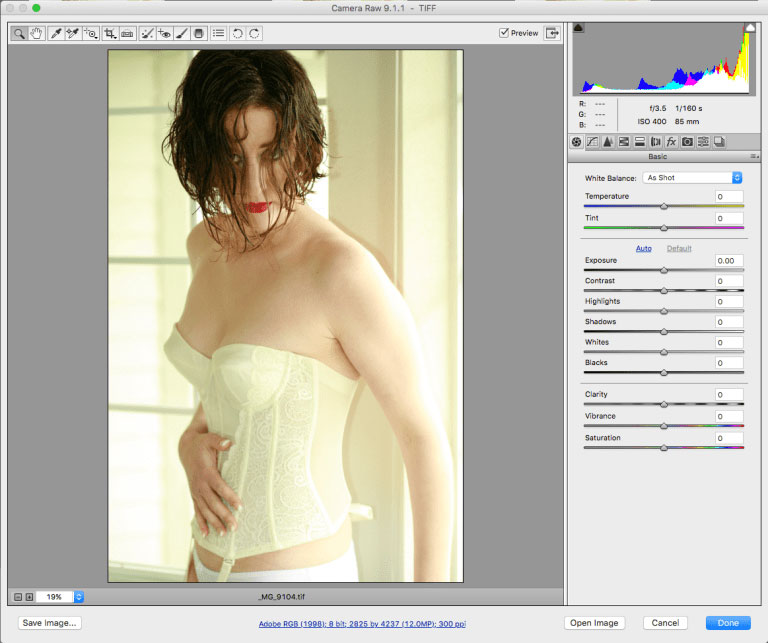 I’ve mentioned here many times but these days I shoot everything from portraits to cars in RAW+JPEG mode. When working with available light, there is a distinct advantages to shooting and working with RAW files. One of the most important is the ability to change a photograph’s white balance in either Adobe Camera RAW or another program. On the surface this could mean that you may think you don’t have to worry about setting proper white balance while making photographs but you would be wrong. This is especially true if the real world lighting you’re working with throws you a curve, like it did when I was making a window light portrait of my former muse, Tia.
The Importance of White Balance
At the time of exposure, a digital camera records an image’s white balance as metadata, which you can read when opening a file in Adobe Camera Raw, for example. It appears at the top of the dialog box. Capturing by Auto White Balance (AWB) usually produces the correct color temperature but not always. You can adjust white balance when starting image processing letting you create the best looking photograph, which means that only minor tweaks will be required to make an already good-looking image into a great, or better, one. If you look at Tia’s skin tone (above right,) it seems acceptable. if a bit warm. but that can be a good choice for skin tone. You may indeed prefer that look but in this case I didn’t care for it, mostly, because of the yellow color in the background.
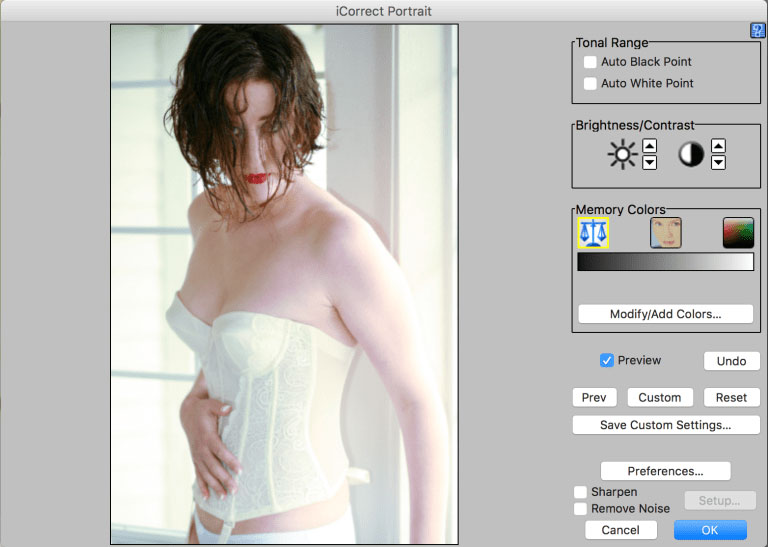 My first choice for color correction is usually PictoColor’s iCorrect Portrait. The Photoshop-compatible plug-in lets you set black and white points, adjust brightness and contrast and automatically corrects color balance and skin tones typically with just a single click. You can save corrections as Custom Settings and apply a correction to multiple images and add custom Memory Colors to suit your preferences.
An alternative is the Remove Color Cast filter that’s part of Color Efex. It may not be as easy to use as iCorrect Portrait but it does a good job. If anyone has a favorite tool for color correction, please let me know and I’ll include it in a future post..
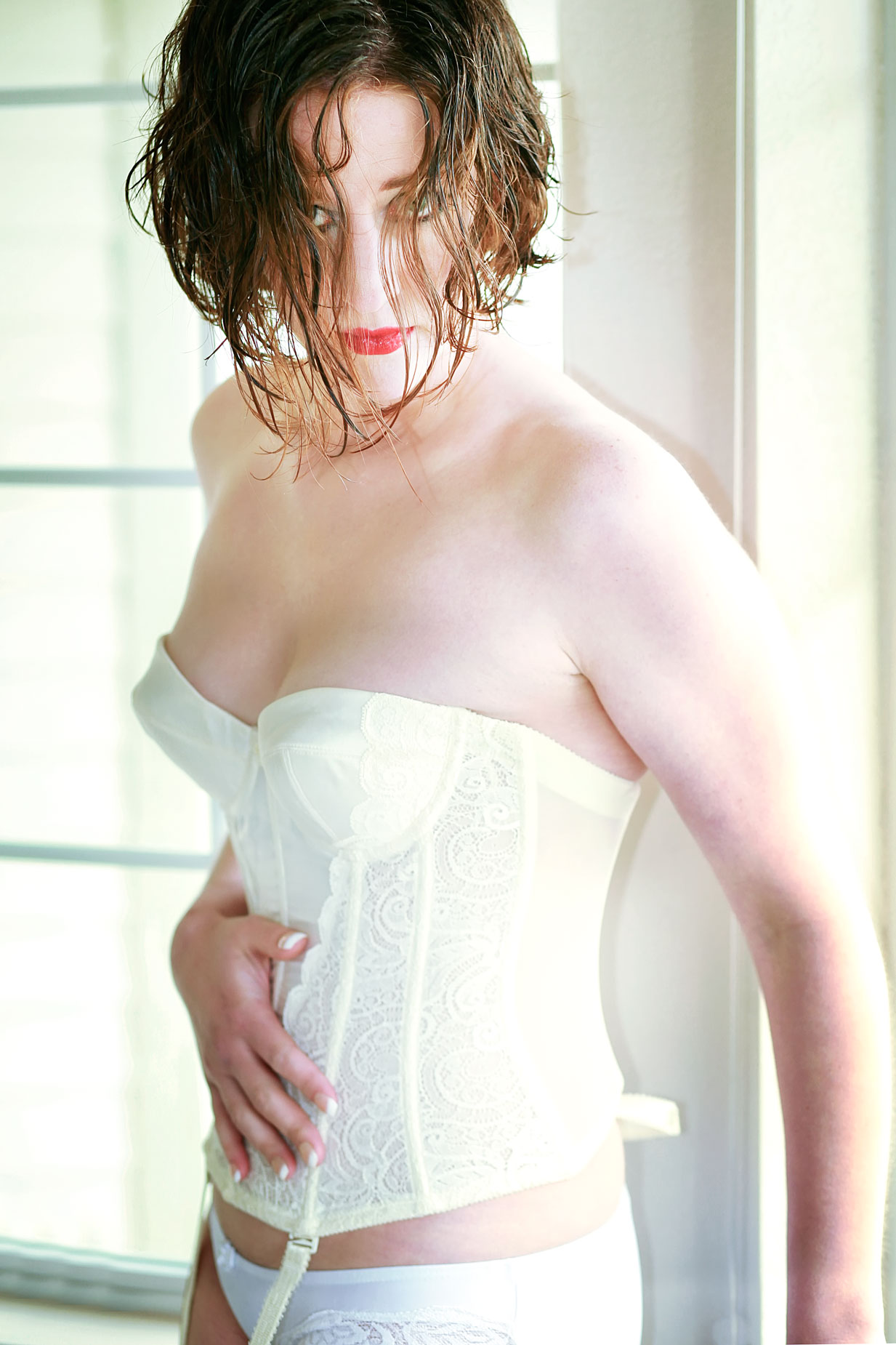 Try as you may sometimes it seems as though you can’t get an image’s color balance right. That includes me too when making this portrait of Tia using (mostly) window light. She is wearing a white corset and the window frame behind her is white as well. But the color temperature of light can vary not only by time of day but time of year and who knows what colors were bouncing in on her from outdoors. I’m sure that green hue on her right was caused by reflections off the grass in my front yard.
How I Made this portrait: Tia’s portrait was made using a Canon EOS 5D Mark I set in AWB mode with my all-time favorite portrait lens, the EF 85mm f/1.8 USM. The exposure was 1/160 sec at f/3.5 and ISO 400. An EX550 speedlite with Sto-fen Omni Bounce attached was used for fill.
After opening the photograph in Photoshop and launching PictoColor’s iCorrect Portrait, I clicked on the window frame to produce the color balance you see here. I could have followed up using the software’s skin tone memory color by clicking on her cheek or use the Auto White Point of Auto Black Point options and sometimes I do that depending on an image’s contrast levels. The final touch was adding a dodging layer from Photokit to the top two-thirds of the portrait and two layers at 100% of burning to the right half of the image.
 If you enjoyed today’s blog post and would like to buy Joe a cup of Earl Grey tea ($2.50), click here. And if you do, thank so very much.
If you’re interested in shooting portraits and how I use cameras, lenses and lighting in my in-home studio, you can pick up a used copy of Studio Lighting Anywhere from Amazon.com for around twenty-five bucks, as I write this. The Kindle version is $19.99 for those preferring a digital format.