
Today’s Post by Joe Farace
Life is a constant oscillation between the sharp horns of dilemmas. — H. L. Mencken
 Prologue: About today’s quote–The Peabody Book Store and Beer Stube was started by brothers Hugo and Siegfried Weisberge in 1922. The bookshop was located at 913 N. Charles Street in Baltimore and also served as an art gallery for local artists. Weisberger abandoned the Peabody in 1954, after being convinced by long time patron H. L. Mencken that people were no longer interested in “books and ideals and culture.” The shop closed in 1986 and after moving to Colorado I brought with me many fond memories of lunches with friends there. Sadly, the building was demolished in 1997 to make way for a parking lot
Another Way to Sharpen
In a recent post I suggested to readers that they might want to try using Unsharp Mask to sharpen their image files. This Photoshop (and other software’s) feature was my go-to way to sharpen digital image files but in recent months I started moving away from using it along with soft focus techniques, like the Glamour Glow filter, moving toward producing sharper images, More often than not these photographs were enhanced using Photoshop’s Smart Sharpen command. How sharp? As author Mick Herron once said, “sharp as a dentist’s tool.”
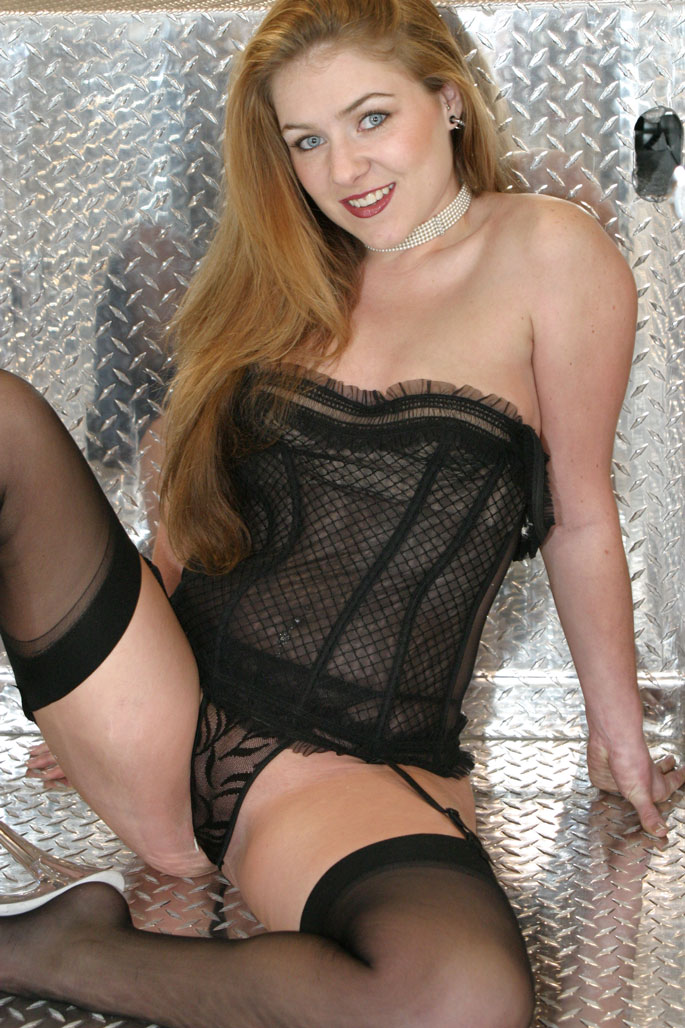
How I Made this portrait: I photographed Kirsten sitting in a fire truck during a calendar shoot a few years ago using a Canon EOS 10D and a EF 28-105mm f/3.5-4.5 II USM lens at 45mm. The exposure was 1/60 sec at f/4.5 and ISO 80 with a minus one-half stop exposure compensation. A Canon 420EX speedlite was used for fill. You can see the SOOC JPEG file at above left.
Here’s how to use it:
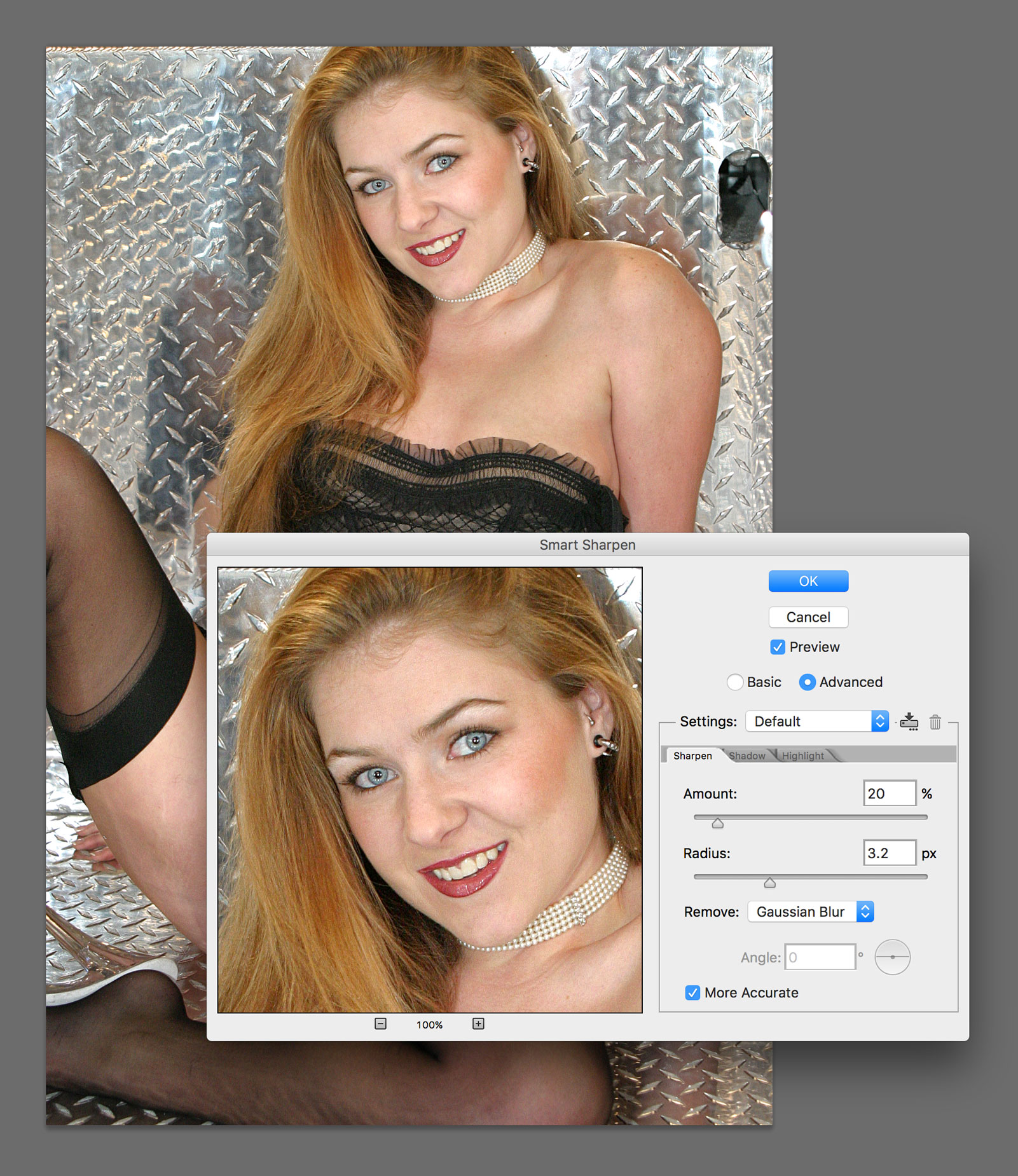 Step 1: Adobe recommends that you Convert to Smart Object before applying this filter. To do that, right-click the image’s layer in the Layers panel and choose Convert to Smart Object. This lets you to edit or remove the sharpening settings later without permanently altering the original image’s pixels. I never do that but feel free to try it yourself if you want to give it a try. Or start with…
Step 1a: Navigate to the top menu and select Filter > Sharpen > Smart Sharpen.
Step 2: Inside the dialog box (right,) there are two options: Basic and Advanced with three tabs: Sharpen, Shadow and Highlight. You might want to check Preview to see what a magnified area of the sharpened image looks like in real time. The Sharpen sliders look a whole lot like the sliders found in Unsharp Mask and are:
- Amount: Increases contrast along edges. You should gradually increase this slider until the image looks sharp enough for you but stop before it looks unnatural or develops halos.
- Radius: Controls how wide the sharpening effect extends from the edges. A low value (1–2 pixels) is usually best for producing fine detail; higher values create thicker, aggressive edges.
- Remove: Choose the type of blur you’re trying to fix:
- Lens Blur: Typically the best option.
- Gaussian Blur: For just a little more sharpening.
- Motion Blur: Best if the image has blur from camera shake and allows you to adjust the Angle wheel to match the direction of the blur.
Step 3: The Angle command is designed to correct blur caused by camera or subject motion. It’s optional because this feature is only activated when the Remove drop down menu is set to Motion Blur.
Note: The Shadow and Highlight tabs are only visible when the Advanced option is selected. The Shadow tab is used to reduce or remove sharpening from the darker areas of your image and prevents shadow noise from being exaggerated during the sharpening process. Similarly, the Highlight controls allows you to selectively reduce sharpening in the brightest areas of your image to prevent bright edges from becoming over-sharpened or developing unwanted halos.
 If you enjoyed today’s post and would like to support this blog, you can help by making a contribution via Patreon, where memberships start at just $1.25 a month, with additional levels of support at $2.50 and $5 that includes special benefits. If you do, I would like to thank you for your support.
If you’re interested in learning more about how I use cameras, lenses and lighting in my in-home studio and on location, please pick up a copy of Studio Lighting Anywhere which is available used from Amazon.com for around five bucks, as I write this. The Kindle version is $19.99 for those preferring a digital format.