
Today’s Post by Joe Farace
The sharp thorn often produces delicate roses.–Ovid
 One of the advantages digital capture has over shooting with film is the different ways image enhancement software will let you sharpen images.
Most image enhancement programs and even some plugins include a Sharpen command that typically works by raising the contrast of adjacent or edge pixels. Sometimes this technique increases image sharpness at the expense of increasing contrast at the same time. While some image files—larger ones— can handle additional contrast before loosing highlight detail, others cannot. So what to do?
Sharpness, Brightness and Warmth
In a recent post about composition, I mentioned that the human eye looks at photographs in the following order: sharpness, brightness and warmth. You’ll notice that sharpness is first because the first thing your eye notices in a photograph are its sharpest parts. So how do you sharpen your image files? Let me make a suggestion: Instead of using the Sharpen command, a better way to increase an image file’s sharpness might be using the Unsharp Mask command that’s found in Photoshop (Filter > Sharpen > Unsharp Mask) and some other image editing programs.
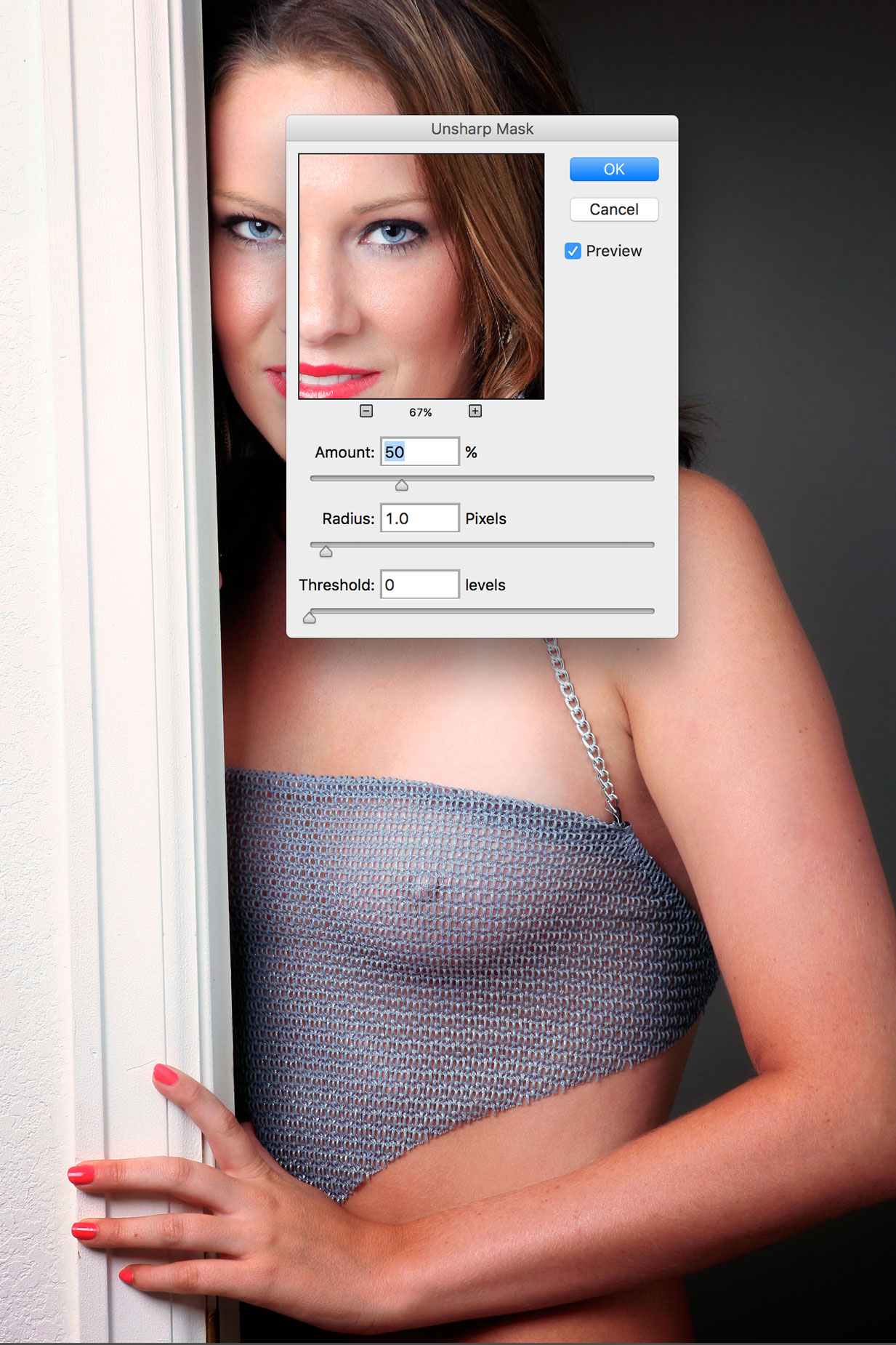 Photoshop’s Unsharp Mask dialog box has three sliders that let you control the amount of sharpness that’s applied:
- The Amount slider controls the percentage of sharpening. Don’t be afraid to apply more than 100 percent to high resolution files but low res images fall apart when higher amounts are used.
- The Radius value will vary depending on subject matter, final reproduction size and output. For high-res images, a Radius value between one and two is typical. Lower values only sharpen the edge pixels, whereas a higher value sharpens a wider band of pixels.
- The Threshold slider lets you determine how different the sharpened pixels are from the surrounding area before being considered as edge pixels. Using a threshold of four affects all pixels with tonal values that differ by four or more. If adjacent pixels have high tonal values, they’re not affected.
Tip: Here’s a technique you can use to deal with any color fringing that will sometimes occur when applying Unsharp Mask or other sharpen controls. After sharpening the image, go to the Fade command (Edit > Fade Unsharp Mask) that appears after a filter is applied. Don’t change the Opacity setting—leave it at 100%—but select Luminosity from the Layers pop-up menu at top left. Any glaring color artifacts should be gone.
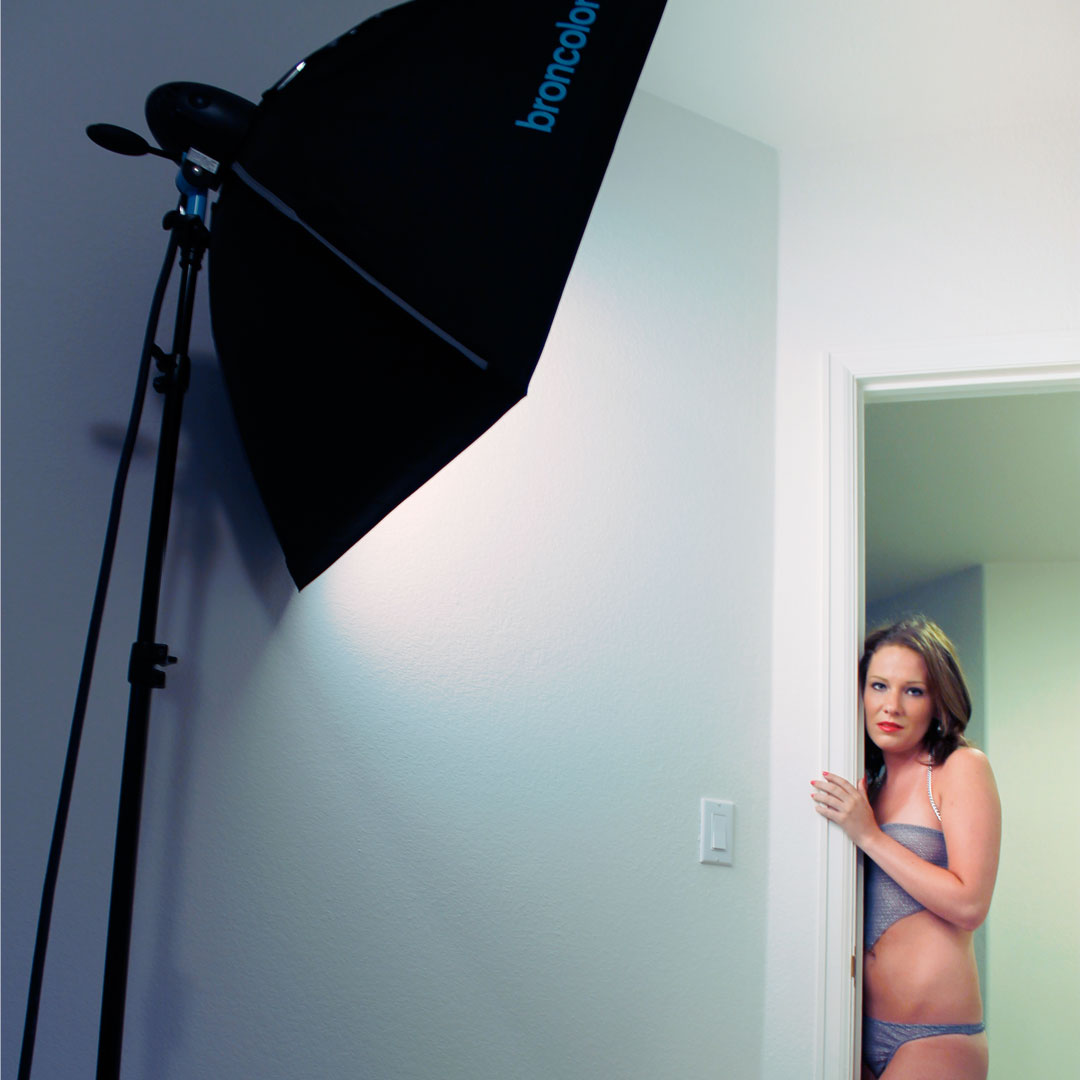
How I Made This Photograph: The portrait of Colleen Breanne (at right) was made while she was posing in the doorway to my home studio. It was shot using only a single Broncolor head with 28-inch soft box attached and placed at camera left as shown in the upper right.setup photo. The photograph was made with a Canon EOS ID Mark IIN and my favorite EF 135mm f/2.8 SF lens; the soft focus setting was zero The exposure was 1/60 sec at f/10 and ISO 100. . The image file was retouched using my standard techniques with some light burning and dodging created using the layers produced by PhotoKit 2.
 If you enjoyed today’s post and would like to support this blog, you can help by making a contribution via Patreon, where memberships start at just $1.25 a month, with additional levels of support at $2.50 and $5 that includes special benefits. And if you do, I would like to thank you for your support.
If you’re interested in learning how I use cameras, lenses and lighting in my in-home studio and on location, please pick up a copy of Studio Lighting Anywhere which is available used from Amazon.com for around five bucks, as I write this. The Kindle version is $19.99 for those preferring a digital format.